Application Update Guide
This guide explains how to update the Kubernetes applications in the AGENTIC STAR marketplace edition.
This feature (self-update from the admin console) is available from v2.3.0 onward. To update from a version earlier than v2.3.0, please perform a manual update (Method B).
You can choose from two methods. Method A (self-update) is recommended for most cases.
| Method | Overview | Recommended For |
|---|---|---|
| Method A: Self-update from the admin console (recommended) | Select a target version from the "Version Management" page and execute. Each service is upgraded automatically in dependency order. | Most regular updates |
| Method B: Manual update (CLI operations) | Operate kubectl / helm directly to upgrade individual charts. | When you need fine-grained control, integration into CI/CD, or recovery from a failure |
Method A: Self-update from the Admin Console (recommended)
From the "Version Management" page in the admin console, you can automatically upgrade to the next available version. Each service is upgraded sequentially in pre-defined dependency order, and you can review progress and results on screen.
A-1. Prerequisites
- You can sign in to the admin console (e.g.,
https://admin.<your-domain>) with administrator privileges - The umbrella chart (
agentic-star-platform) is published in the official Helm repository - The upgrade controller (
upgrade-controller) is running in AKS
A-2. Open the Version Management page
After signing in, click "Version Management" in the left sidebar.
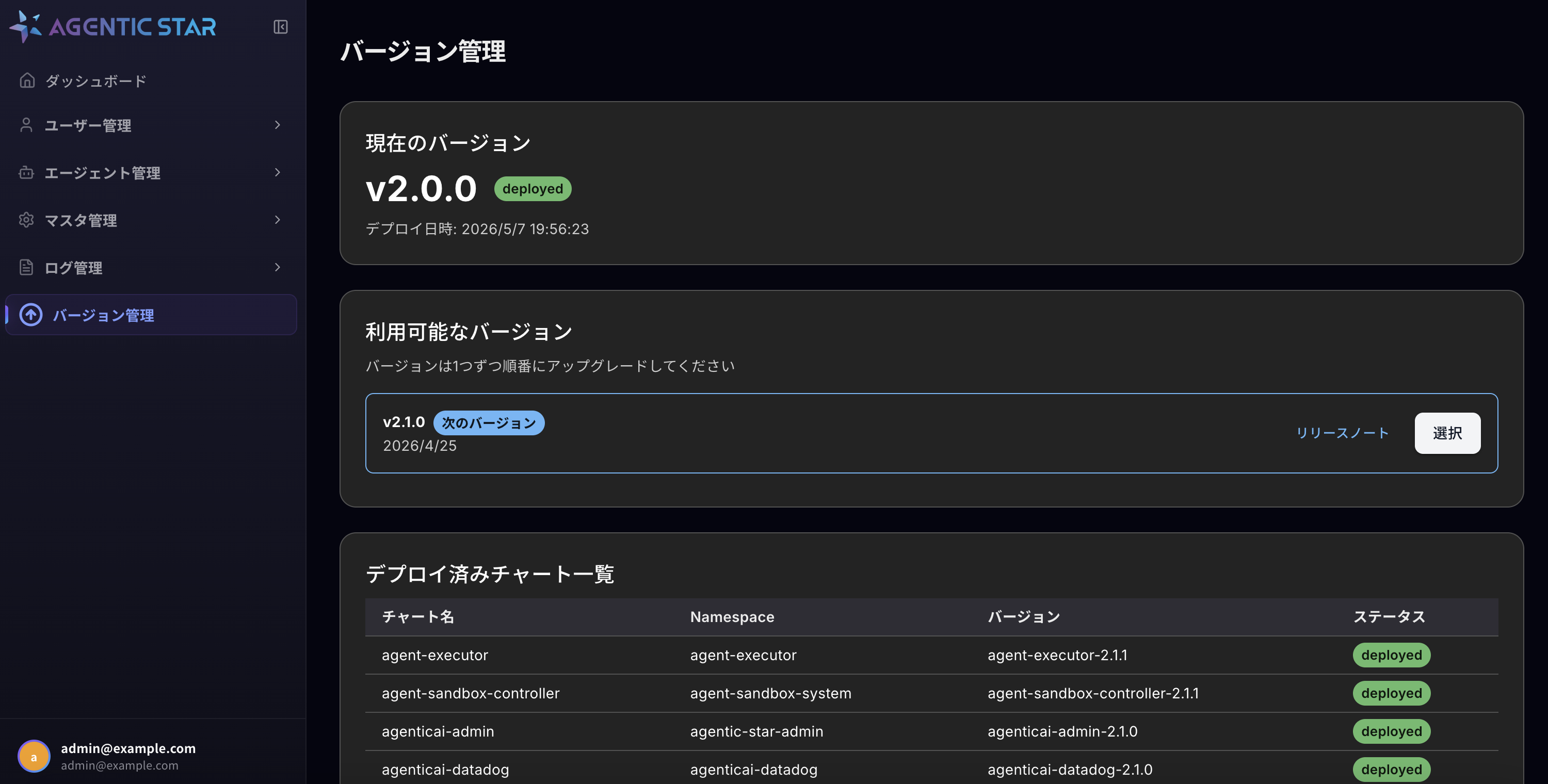
The page shows:
- Current version: The currently deployed platform version (e.g.,
v2.0.0) anddeployedstatus - Available versions: The next upgradable version (with a "Next version" label) and a link to each version's release notes
- Deployed charts: Current version and status of each sub-chart
The available versions list follows a sequential upgrade model. You cannot jump multiple versions ahead — you must apply each "Next version" in order.
A-3. Select an upgrade target
In the "Available versions" section, click the "Select" button on the right side of the next version you want to upgrade to (e.g., v2.1.0).
A-4. Review release notes and changes
The "Upgrade Analysis" page is displayed.
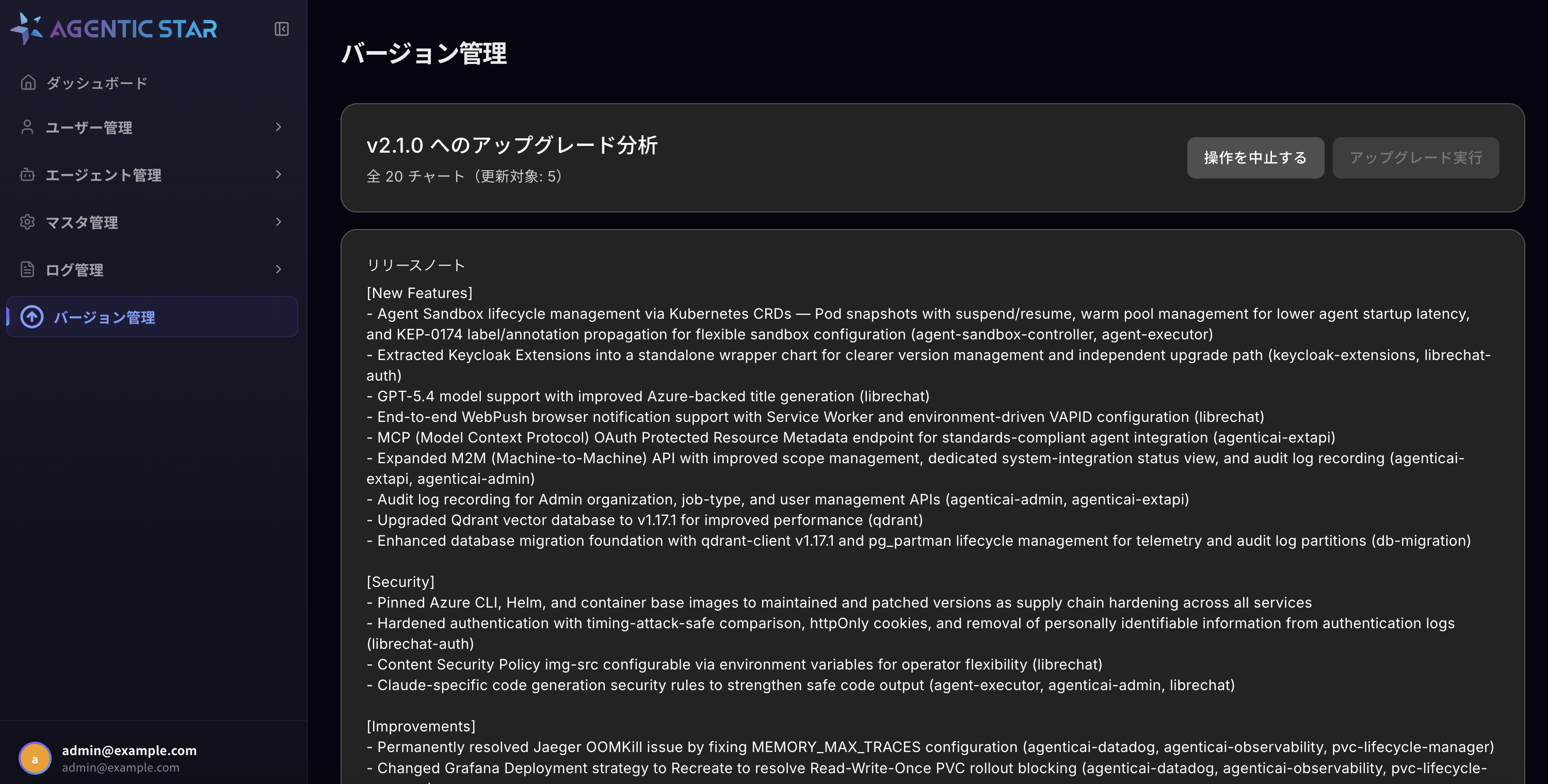
You can review:
- Release notes (new features, changes, security fixes, etc.)
- How many charts will be updated out of the total
- Auto-applied values (
auto_set) and values requiring input (user_input) for each service - When
user_inputis present: An input form is shown. Enter values referring to the hint for each item.
After reviewing/entering values, click the "Execute Upgrade" button at the top right.
A-5. Confirm execution
A confirmation modal is displayed.
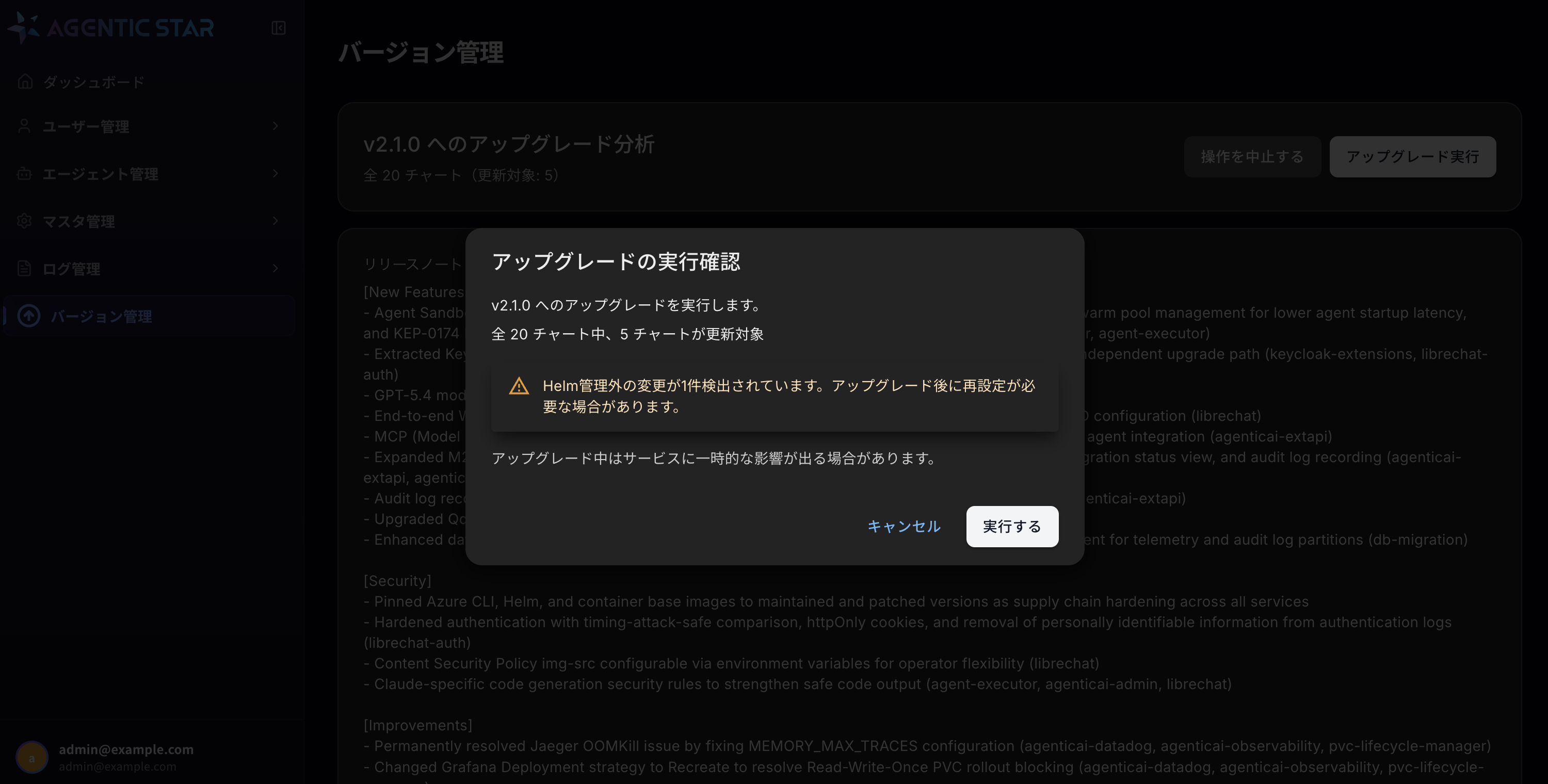
Review the warning messages:
- The number of charts to be upgraded
- A warning if Helm-external changes are detected (re-application may be required)
- Possible temporary impact on services during the upgrade
If everything looks good, click "Execute". To abort, click "Cancel".
A-6. Watch progress
The upgrade starts and the progress page is displayed.
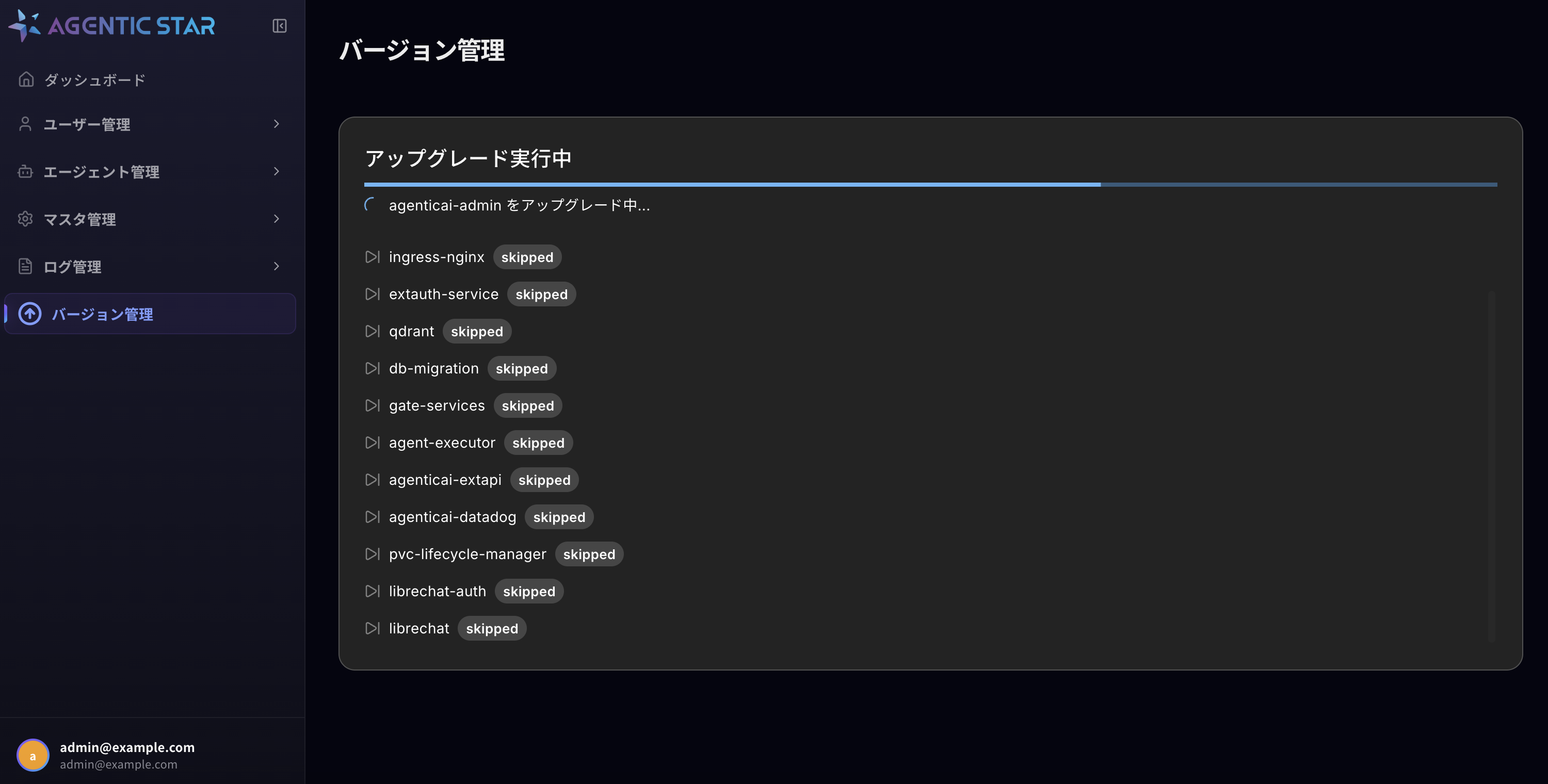
The page shows:
- An overall progress bar
- The chart currently being processed (
Upgrading <chart-name>...) - Status of each chart (
processing/completed/skipped/failed)
Charts that have no version change (already at target_version) are shown as skipped and helm upgrade is not executed.
You can close this page and the upgrade will continue, but keep it open if you want to monitor progress.
A-7. Confirm completion
When all charts are processed, the completion screen is displayed.
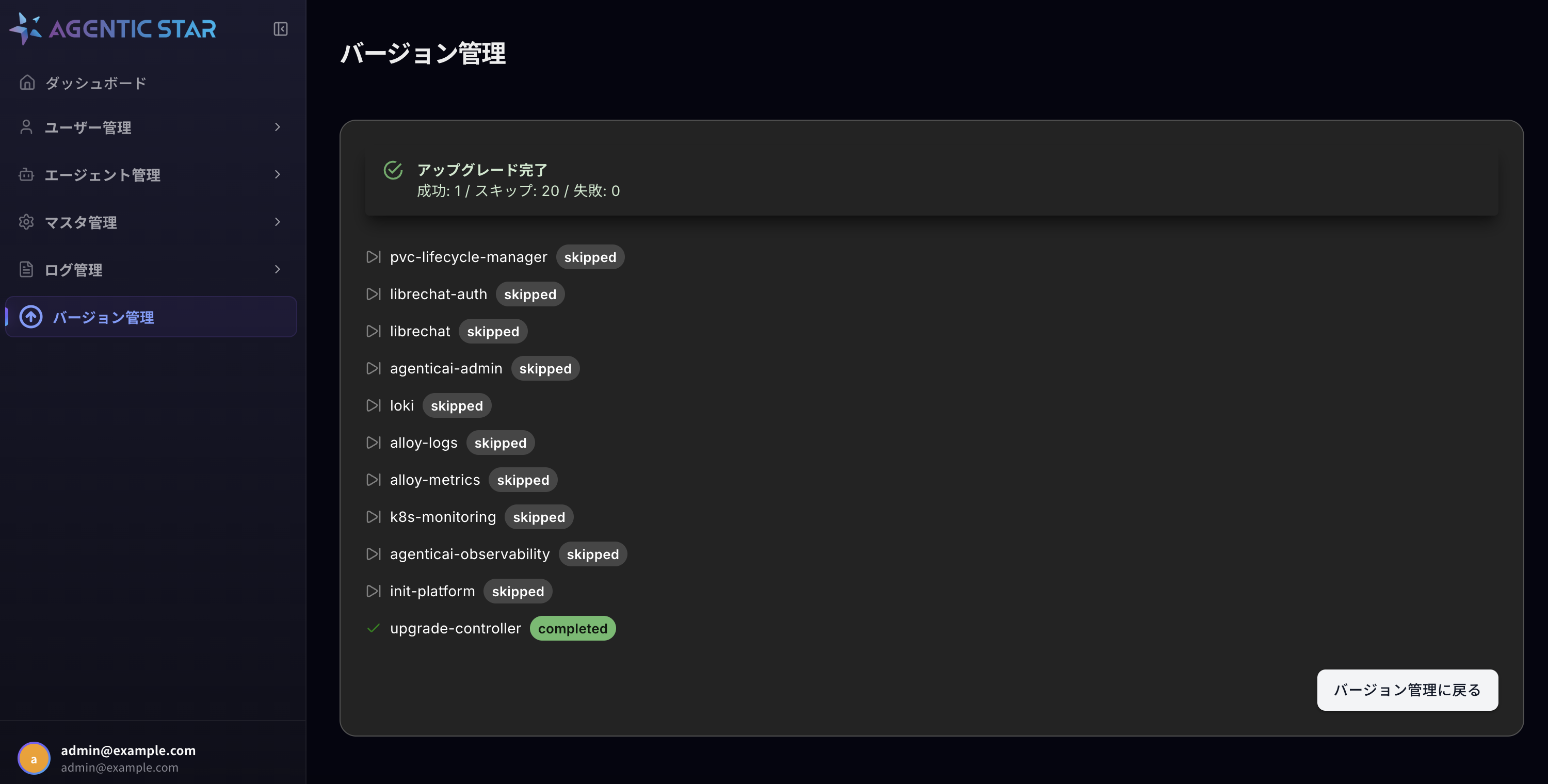
Verify the following:
- The header shows "✓ Upgrade Complete"
- Summary: Succeeded / Skipped / Failed counts
- Make sure Failed is
0
- Make sure Failed is
- Status list of each chart
The upgrade-controller itself also performs a self-upgrade at the end (shown as completed).
When done, click "Back to Version Management" to return to the version management page.
A-8. Verify after the update
On the Version Management page, confirm that "Current version" reflects the new version.
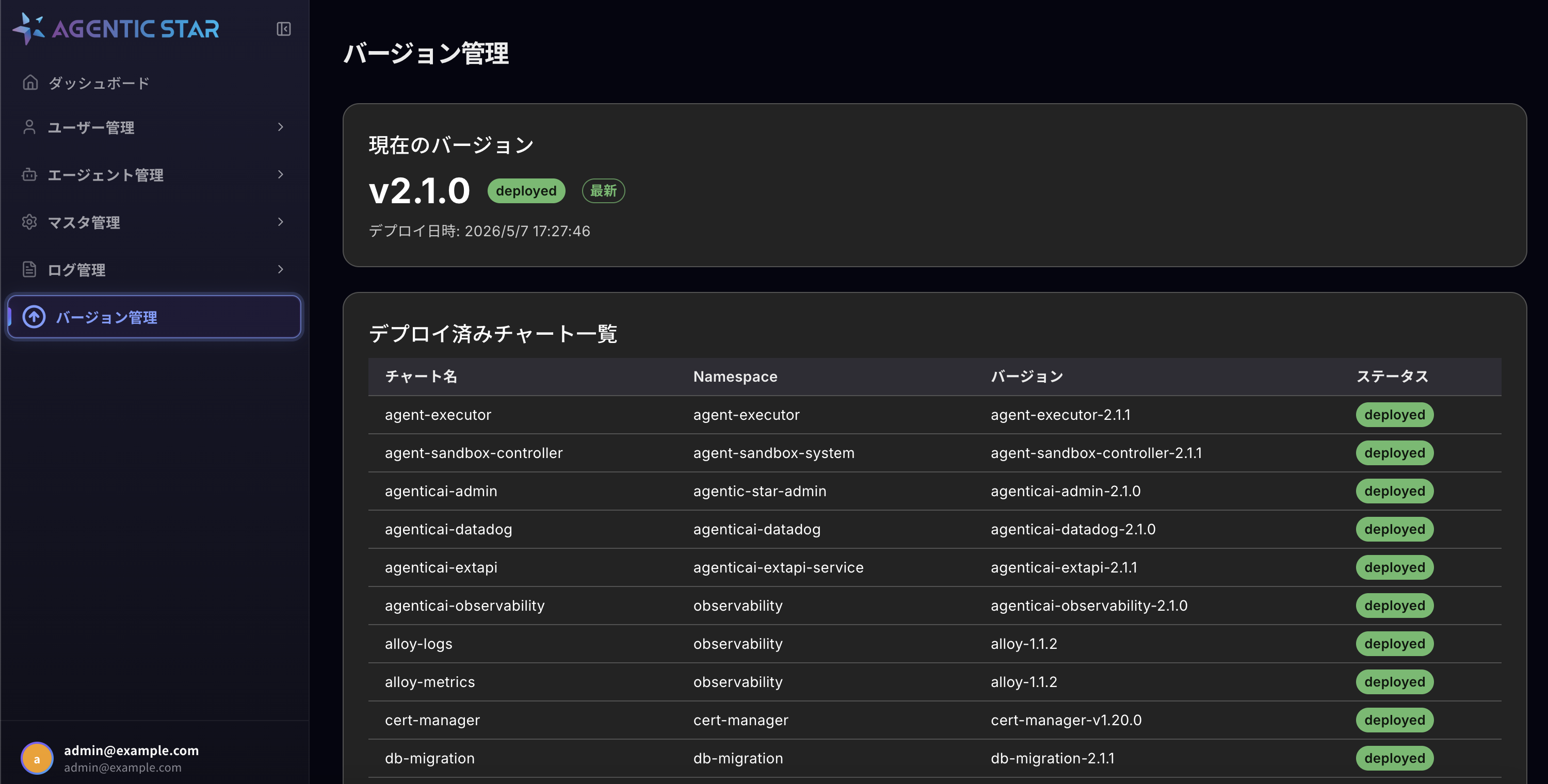
- Current version: The new version is shown with
deployedandLatest - Deployed charts: Each sub-chart is at the new version with
deployedstatus
A-9. Troubleshooting
| Situation | Action |
|---|---|
| The lock is not released and you cannot retry | Verify that no other upgrade is in progress. If clear, an administrator can force-release the lock. |
| Some charts failed | Check the error message of the failed charts on the completion screen. Inspect Pod status (kubectl get pods -A) and Pod logs in AKS, then recover via Method B (manual update) if needed. |
| The progress page does not advance for a long time | Check the upgrade-controller Pod logs (kubectl logs -n upgrade-controller deploy/upgrade-controller). |
| "Helm-external changes detected" warning appears | Settings applied manually after the previous upgrade may be overwritten. Re-apply your custom settings after completion. |
Method B: Manual Update (CLI operations)
This procedure upgrades each chart individually using kubectl / helm. Use it when integrating with CI/CD, or when recovering services that failed in Method A.
B-1. Prerequisites
- Connected to the AKS cluster via
kubectl - Helm v3 installed
- Administrator privileges on the target cluster
In the marketplace environment, the Helm storage driver is set to configmap, so all helm commands must be prefixed with HELM_DRIVER=configmap.
B-2. Update flow
- Download the new version of the umbrella Helm chart
- Extract it and check each service's version in Chart.yaml
- Download individual charts
- Update each service with
helm upgrade --reuse-values - Verify operation after the update
B-3. Download the umbrella Helm chart
Download the latest umbrella chart from the public repository.
# Download the umbrella chart (adjust the version as needed)
curl -O https://agtstrmarketplacecharts.blob.core.windows.net/charts/agentic-star-platform-1.1.3.tgz

# Extract
tar xzf agentic-star-platform-1.1.3.tgz
B-4. Check versions
The extracted Chart.yaml contains the individual version for each service.
cat agentic-star-platform/Chart.yaml
B-5. Download individual charts
Add the Helm repository and download charts with the versions listed in Chart.yaml.
# Add the AGENTIC STAR repository
helm repo add agenticai-prod https://agtstrmarketplacecharts.blob.core.windows.net/charts
helm repo update

# Download an individual chart (e.g., agenticai-admin 1.1.3)
helm pull agenticai-prod/agenticai-admin --version 1.1.3 -d charts/
B-6. Service list
The following is the list of services included in the marketplace edition.
Application components
| Release Name | Namespace | Notes |
|---|---|---|
librechat | agentic-star-front | Main application |
librechat-auth | librechat-auth | Authentication service (Keycloak) |
agenticai-admin | agentic-star-admin | Admin console |
agent-executor | agent-executor | Agent execution platform |
agenticai-extapi | agenticai-extapi-service | External API |
gate-services | gate-services | Gateway and routing |
db-migration | db-migration | Database migration |
Security and Infrastructure
| Release Name | Namespace | Notes |
|---|---|---|
extauth-service | proxy-system | Zero-trust authorization service |
ingress-nginx | ingress-nginx | Ingress controller |
qdrant | qdrant | Vector DB |
Monitoring and Operations
| Release Name | Namespace | Notes |
|---|---|---|
prometheus-operator | monitoring | Prometheus monitoring stack |
loki | observability | Log storage |
alloy-logs | observability | Log collector |
alloy-metrics | observability | Metrics collector |
k8s-monitoring | observability | Kubernetes monitoring |
agenticai-observability | observability | Grafana / Jaeger |
agenticai-datadog | agenticai-datadog | Datadog integration (optional) |
pvc-lifecycle-manager | pvc-lifecycle-manager | PVC lifecycle management |
Platform initialization
| Release Name | Namespace | Notes |
|---|---|---|
init-platform | librechat-auth | Initialization job (typically does not need updating) |
B-7. Update commands
Basic pattern
Most services can be updated with the following pattern. --reuse-values preserves all existing settings; only the image tag specified by --set-string "image.tag=..." is updated.
export HELM_DRIVER=configmap

HELM_DRIVER=configmap helm upgrade <release-name> <chart-path> \
  --namespace <namespace> \
  --reuse-values \
  --set-string "image.tag=<version>" \
  --wait \
  --timeout 10m
Application components
librechat (main application):
HELM_DRIVER=configmap helm upgrade librechat ./charts/librechat-1.1.3.tgz \
  --namespace agentic-star-front \
  --reuse-values \
  --set-string "image.tag=1.1.3" \
  --wait \
  --timeout 20m
librechat-auth (authentication service):
HELM_DRIVER=configmap helm upgrade librechat-auth ./charts/librechat-auth-1.1.3.tgz \
  --namespace librechat-auth \
  --reuse-values \
  --set-string "image.tag=1.1.3" \
  --wait \
  --timeout 20m
agenticai-admin (admin console):
HELM_DRIVER=configmap helm upgrade agenticai-admin ./charts/agenticai-admin-1.1.3.tgz \
  --namespace agentic-star-admin \
  --reuse-values \
  --set-string "image.tag=1.1.3" \
  --wait \
  --timeout 10m
agent-executor (agent execution platform):
HELM_DRIVER=configmap helm upgrade agent-executor ./charts/agent-executor-1.1.3.tgz \
  --namespace agent-executor \
  --reuse-values \
  --set-string "image.tag=1.1.3" \
  --wait \
  --timeout 20m
agenticai-extapi (external API):
HELM_DRIVER=configmap helm upgrade agenticai-extapi ./charts/agenticai-extapi-1.0.0.tgz \
  --namespace agenticai-extapi-service \
  --reuse-values \
  --set-string "image.tag=1.0.0" \
  --wait \
  --timeout 10m
gate-services (gateway):
HELM_DRIVER=configmap helm upgrade gate-services ./charts/gate-services-1.1.0.tgz \
  --namespace gate-services \
  --reuse-values \
  --set-string "image.tag=1.1.0" \
  --wait \
  --timeout 10m
db-migration (database migration):
HELM_DRIVER=configmap helm upgrade db-migration ./charts/db-migration-1.1.3.tgz \
  --namespace db-migration \
  --reuse-values \
  --set-string "image.tag=1.1.3" \
  --wait \
  --timeout 10m
Security and infrastructure
extauth-service (zero-trust authorization service):
HELM_DRIVER=configmap helm upgrade extauth-service ./charts/extauth-service-1.0.0.tgz \
  --namespace proxy-system \
  --reuse-values \
  --set-string "image.tag=1.0.0" \
  --set-string "webhook.image.tag=1.0.0" \
  --set cert-manager.enabled=false \
  --wait \
  --timeout 20m
For extauth-service, also specify webhook.image.tag and always include cert-manager.enabled=false (cert-manager is installed separately).
ingress-nginx (Ingress controller):
HELM_DRIVER=configmap helm upgrade ingress-nginx ./charts/ingress-nginx-4.14.0.tgz \
  --namespace ingress-nginx \
  --reuse-values \
  --wait \
  --timeout 10m
qdrant (vector DB):
HELM_DRIVER=configmap helm upgrade qdrant ./charts/qdrant-1.1.0.tgz \
  --namespace qdrant \
  --reuse-values \
  --wait \
  --timeout 20m
Monitoring and operations
prometheus-operator (Prometheus monitoring stack):
HELM_DRIVER=configmap helm upgrade prometheus-operator ./charts/kube-prometheus-stack-79.5.0.tgz \
  --namespace monitoring \
  --reuse-values \
  --wait \
  --timeout 15m
The chart name is kube-prometheus-stack, but the release name is prometheus-operator.
loki (log storage):
HELM_DRIVER=configmap helm upgrade loki ./charts/loki-6.37.0.tgz \
  --namespace observability \
  --reuse-values \
  --wait \
  --timeout 20m
alloy-logs (log collector):
HELM_DRIVER=configmap helm upgrade alloy-logs ./charts/alloy-1.1.2.tgz \
  --namespace observability \
  --reuse-values \
  --wait \
  --timeout 20m
alloy-metrics (metrics collector):
HELM_DRIVER=configmap helm upgrade alloy-metrics ./charts/alloy-1.1.2.tgz \
  --namespace observability \
  --reuse-values \
  --wait \
  --timeout 20m
alloy-logs and alloy-metrics use the same chart (alloy-1.1.2.tgz) but with different release names and values.
k8s-monitoring (Kubernetes monitoring):
HELM_DRIVER=configmap helm upgrade k8s-monitoring ./charts/k8s-monitoring-3.1.2.tgz \
  --namespace observability \
  --reuse-values \
  --wait \
  --timeout 15m
agenticai-observability (Grafana / Jaeger):
HELM_DRIVER=configmap helm upgrade agenticai-observability ./charts/agenticai-observability-1.0.0.tgz \
  --namespace observability \
  --reuse-values \
  --wait \
  --timeout 15m
agenticai-datadog (Datadog integration):
HELM_DRIVER=configmap helm upgrade agenticai-datadog ./charts/agenticai-datadog-1.0.0.tgz \
  --namespace agenticai-datadog \
  --reuse-values \
  --wait \
  --timeout 10m
pvc-lifecycle-manager (PVC lifecycle management):
HELM_DRIVER=configmap helm upgrade pvc-lifecycle-manager ./charts/pvc-lifecycle-manager-1.0.0.tgz \
  --namespace pvc-lifecycle-manager \
  --reuse-values \
  --wait \
  --timeout 10m
B-8. Verify after the update
Check Pod status
# Check Pod status across all namespaces
HELM_DRIVER=configmap helm list -A

# Check Pods in a specific namespace
kubectl get pods -n <namespace>
Check logs
Verify there are no errors after the update.
# Check logs of a specific Pod
kubectl logs -n <namespace> <pod-name>

# Check recent events
kubectl get events -n <namespace> --sort-by='.lastTimestamp'
Notes
- Update on a per-service basis. We recommend updating one service at a time and verifying, rather than all at once (Method A handles this internally).
- Because we use
--reuse-values, settings changed via the Domain Configuration Guide and Security Guide are preserved. - We recommend taking a backup before updating.
- If problems occur, you can roll back by running the same command with the previous version's chart (Method B).